
This guide is also available as a PDF (4 MB). How an article is bought inside an AI assistant is set out on a page of its own.
Getting started
Installation
1 · Accept the invitation & install the app
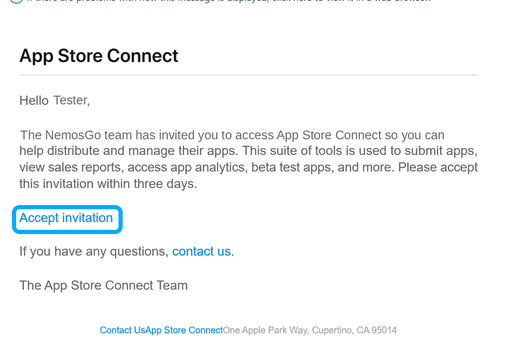
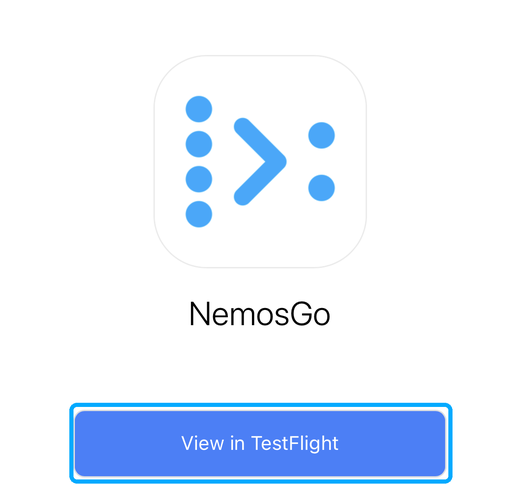
You receive two invitation emails to your Apple Account email. Be sure to open and accept both directly on your iPhone:
- From “App Store Connect” (sender no_reply@email.apple.com) → “Accept invitation”. This first email is easy to miss and sometimes lands in spam, so please check there too.
- From TestFlight (Apple; sender ends in @email.apple.com) → “View in TestFlight”. If you don’t have TestFlight yet, quickly download it free from the App Store.
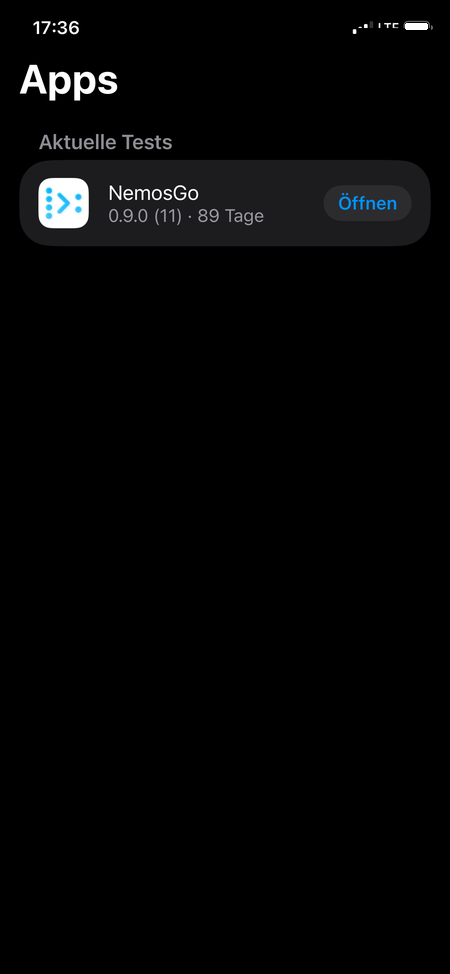
Then tap “Install” in TestFlight, and the NemosGo app downloads.
2 · Sign in to NemosGo
Open NemosGo and sign in with your Apple account:
- Tap “Login”.
- Start authentication.
- Tap “Mit Apple anmelden” (Sign in with Apple) within about 25 seconds, otherwise an error appears (then close the app and restart it).
- Wait briefly for the setup to finish.
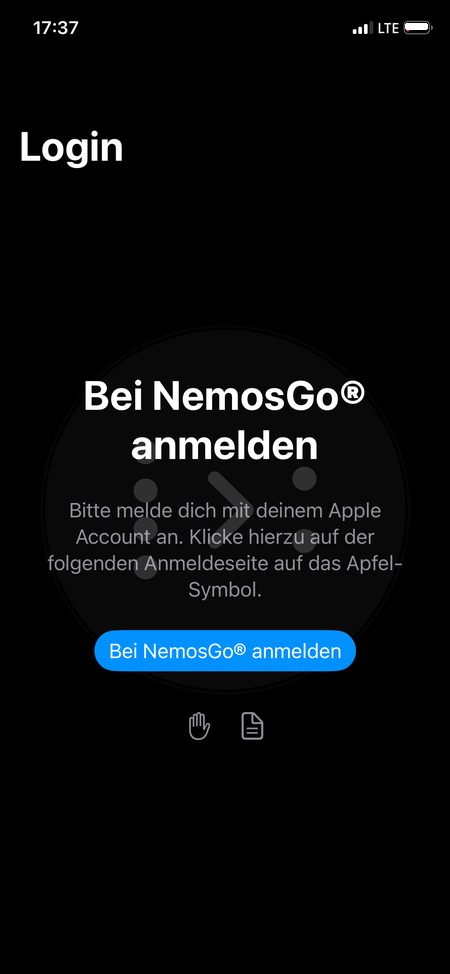
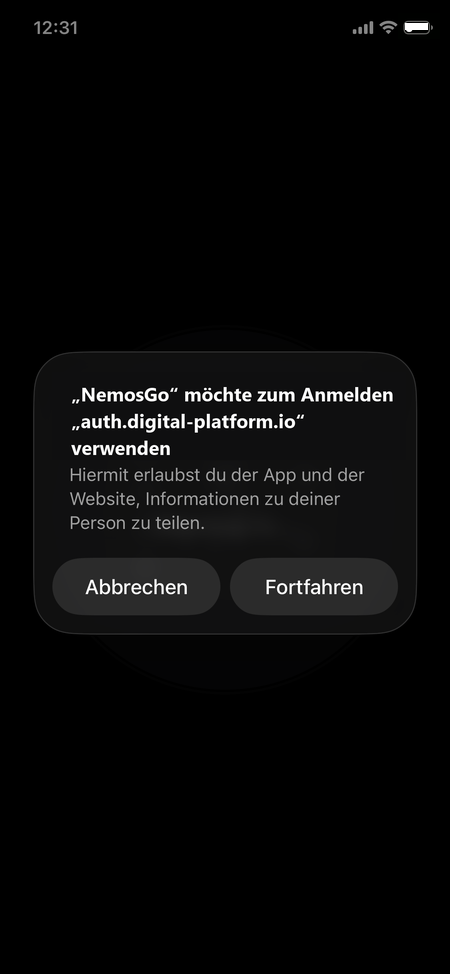
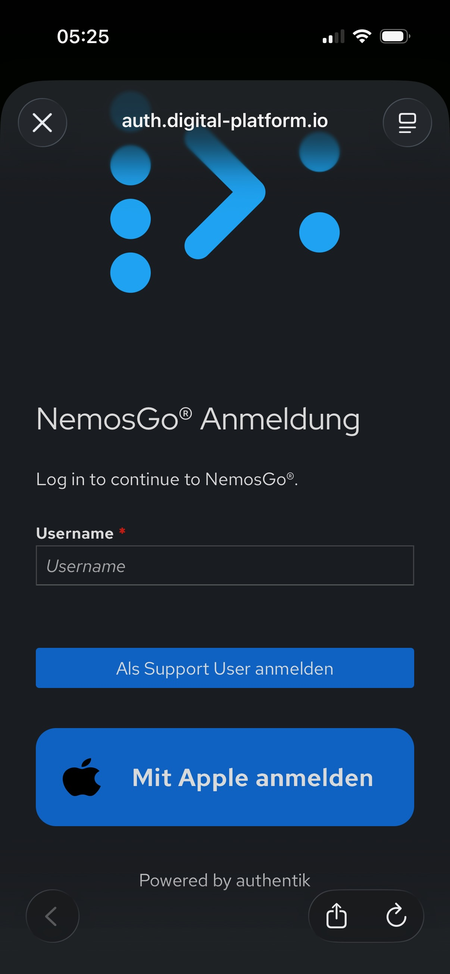
(“Mit Apple anmelden”)
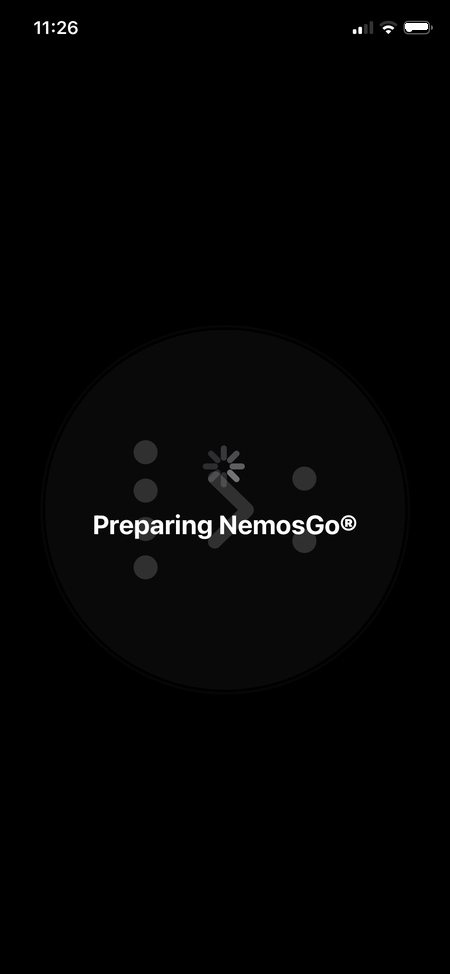
Exchange
Communication
3 · Set up Mattermost
Set up in three steps:
- Download the free Mattermost app from the App Store.
- Find your credentials in the NemosGo app under “Personal View” (via the profile icon, top right), with a copy function.
- Enter server, username and password into the Mattermost app via copy & paste. Tip: long-press the field to paste.
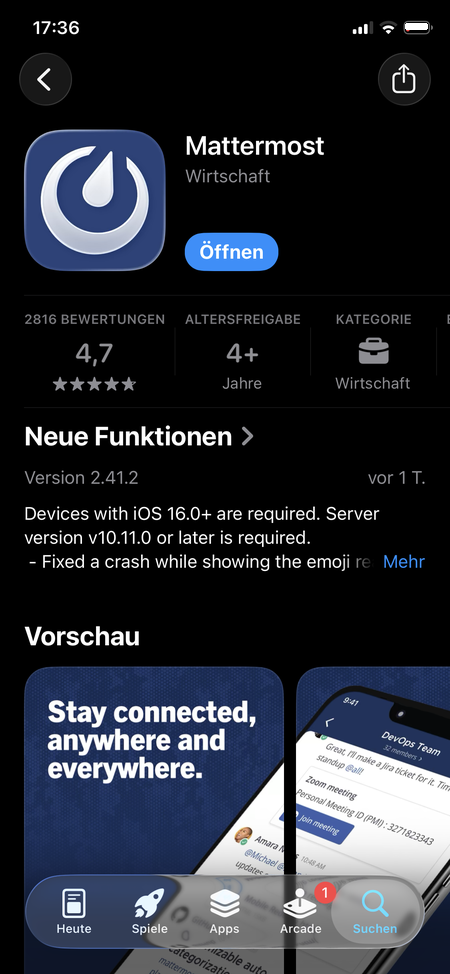
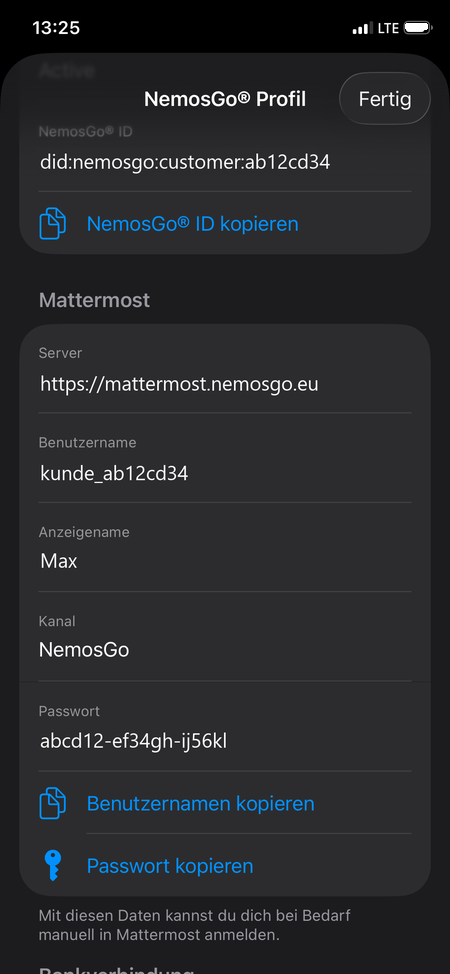
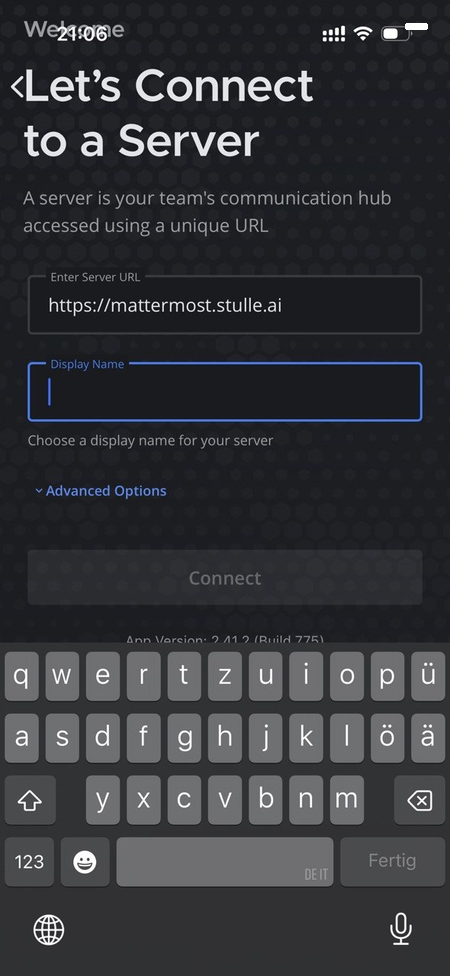
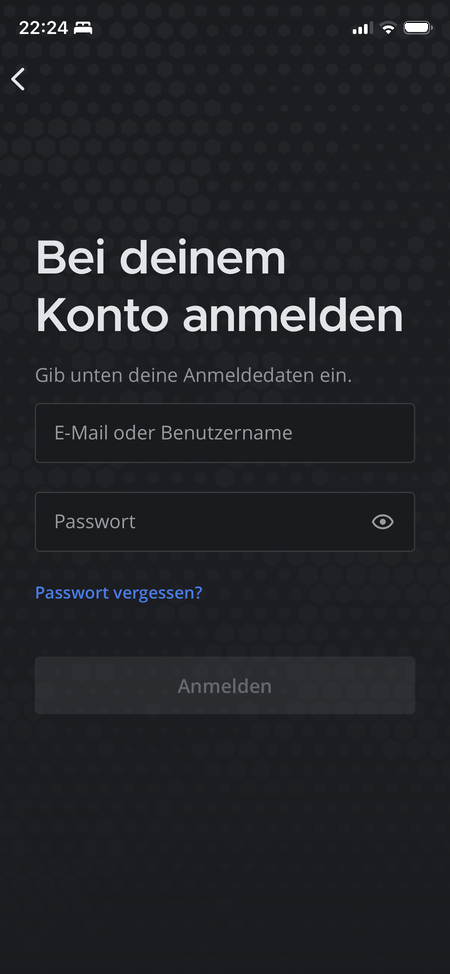
Once set up, you have a choice: use Mattermost as usual via the Mattermost app, or directly in the NemosGo app via the “NemosGo” tab with the messages icon in the bottom bar.
Buy & read
How a purchase works
From credit to receipt. The actual purchase is just three steps, on your iPhone as on your computer. Everything else is a general function of the NemosGo app.
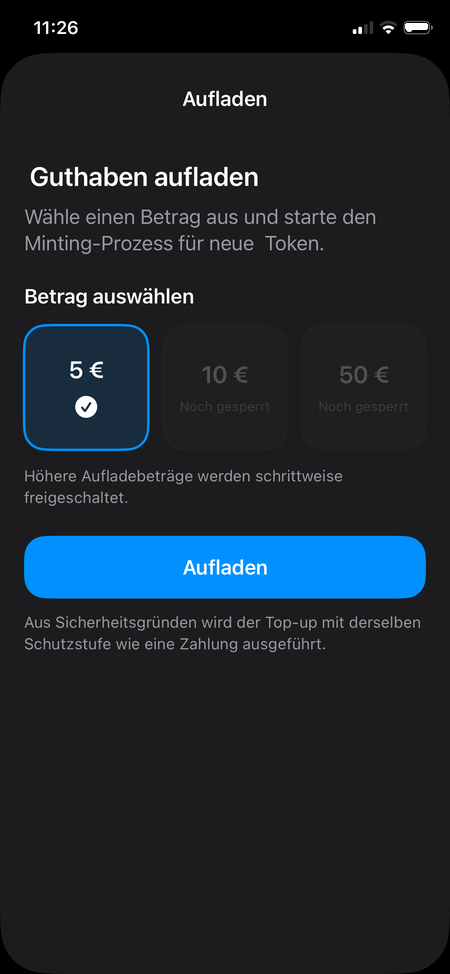
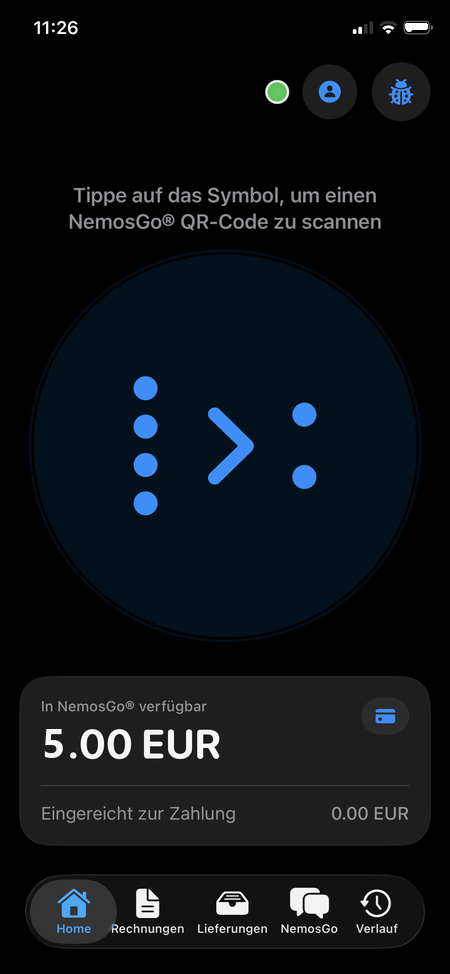
4 · Top up credit
Top up your credit in the app once; it then covers many purchases. The IBAN is a required field. In the test the example IBAN DE89 3704 0044 0532 0130 00 is enough, and nothing is debited. 5 euros of test credit are preselected.
5 · The purchase in three steps
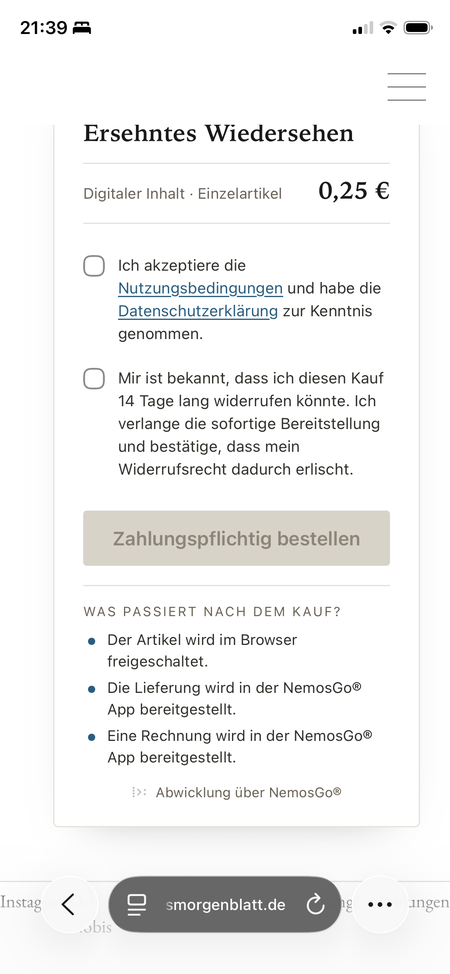
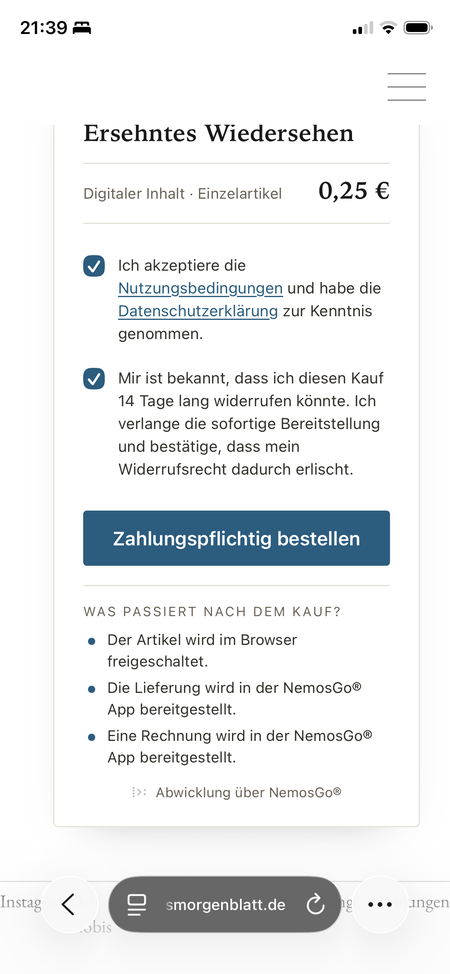
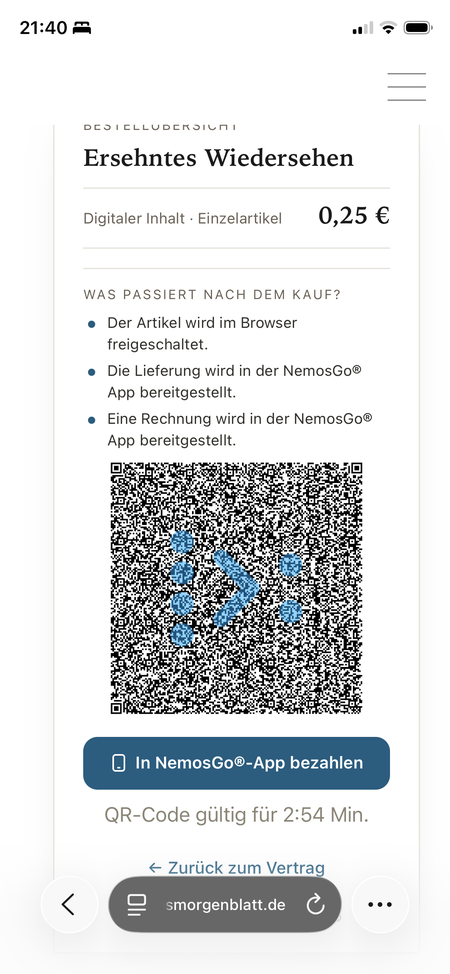
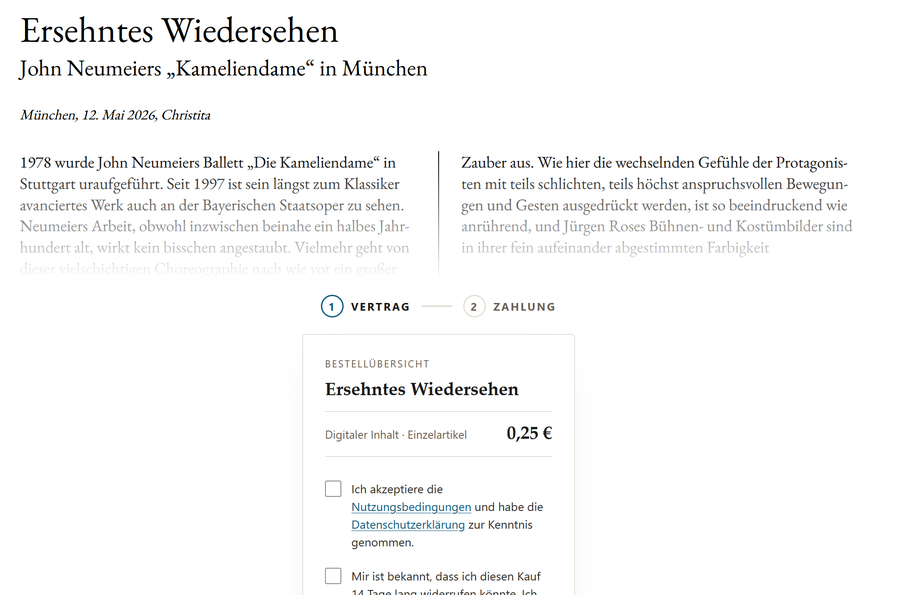
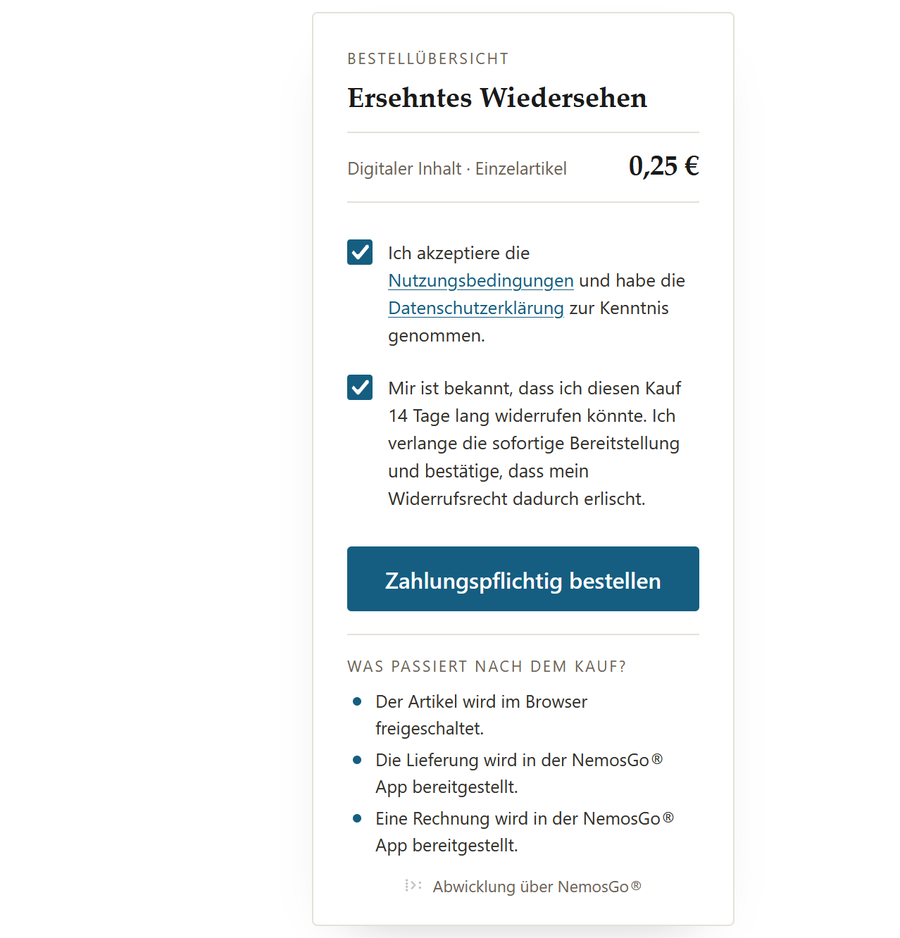
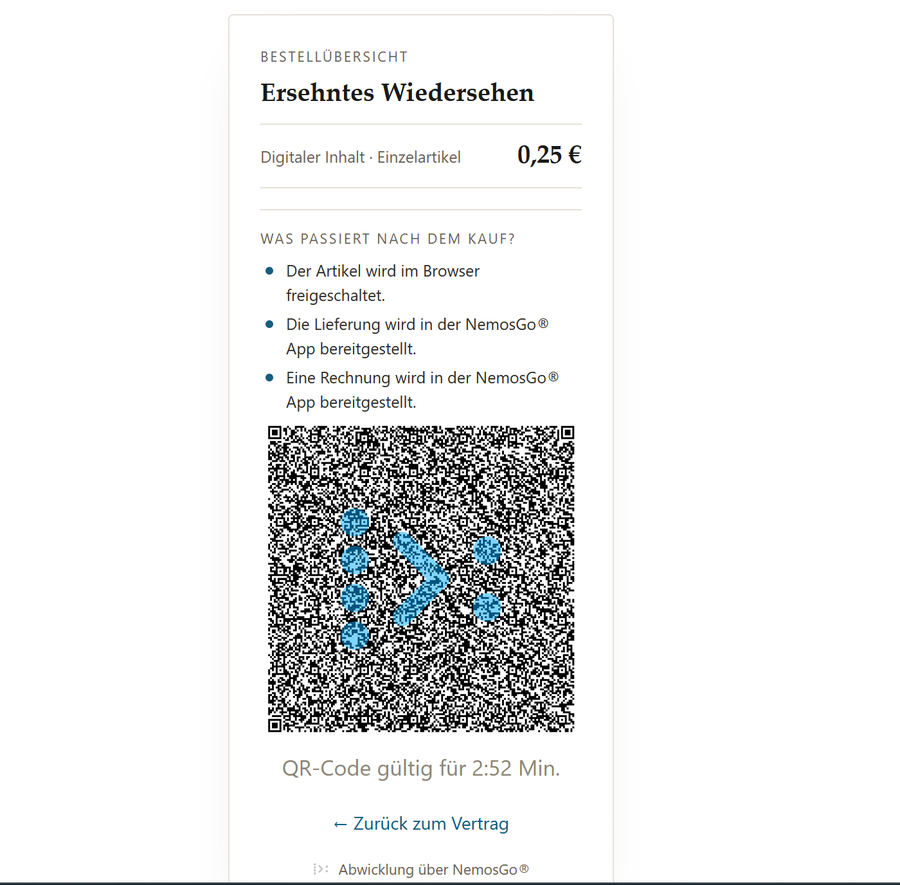
You buy the article in your browser: open the provider’s page and pick a piece. The first two steps, article & contract and place the binding order, are the same on iPhone and computer. Only payment differs: on iPhone you tap the blue “In NemosGo®-App bezahlen” button (pay in the NemosGo® app), on the computer you scan the QR code with the NemosGo app.
On iPhone: via pay link
On the computer: via QR code
6 · Pay
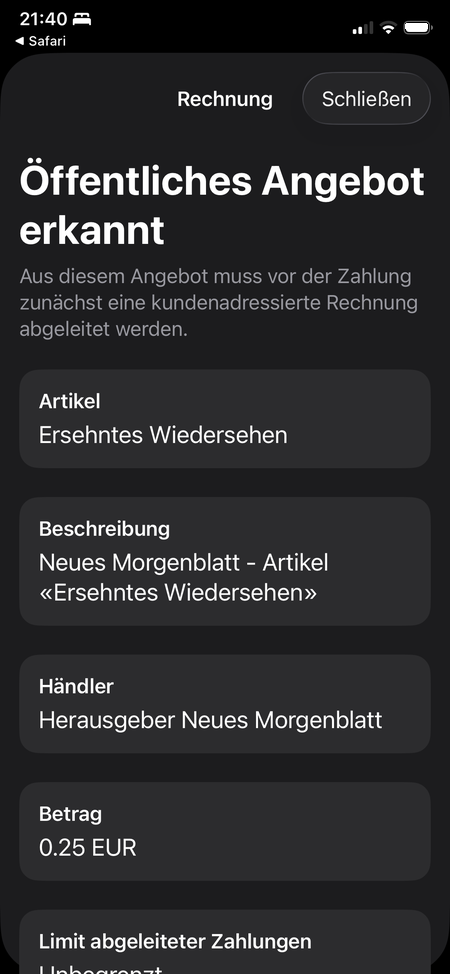
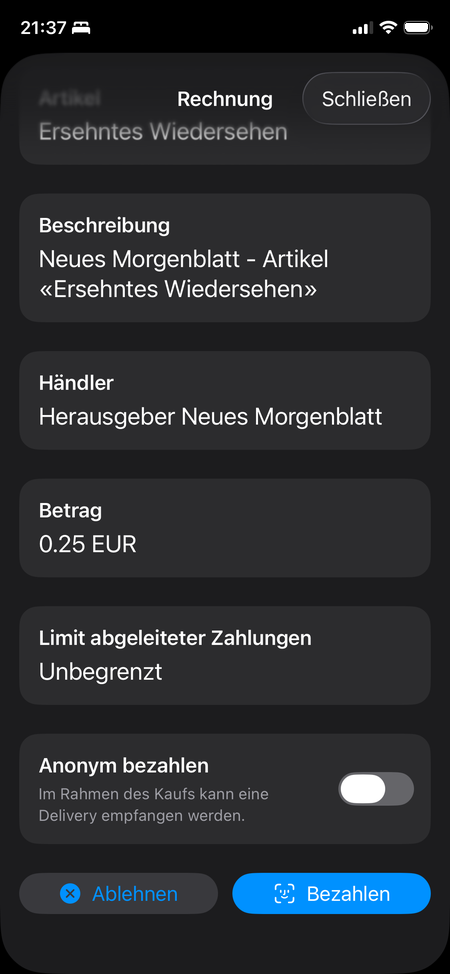
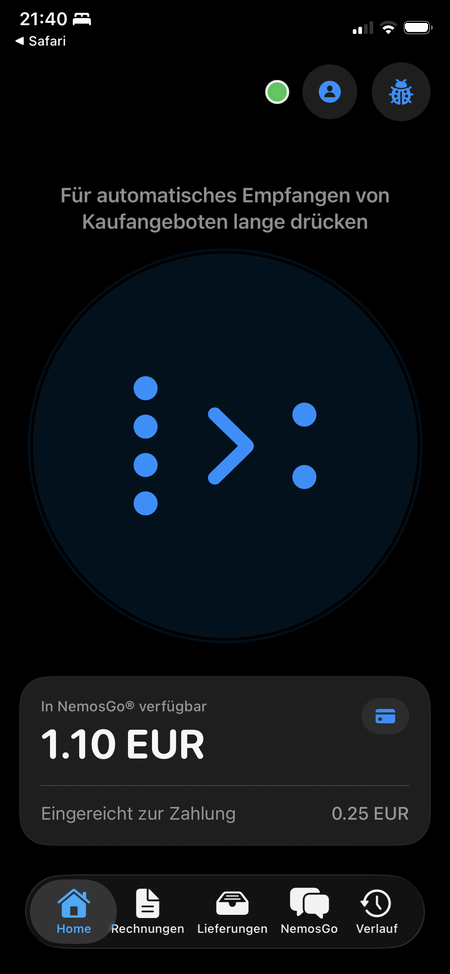
Whether via pay link or QR code, the NemosGo app then takes over: it recognises the offer, you confirm the payment, done.
7 · Read & consume
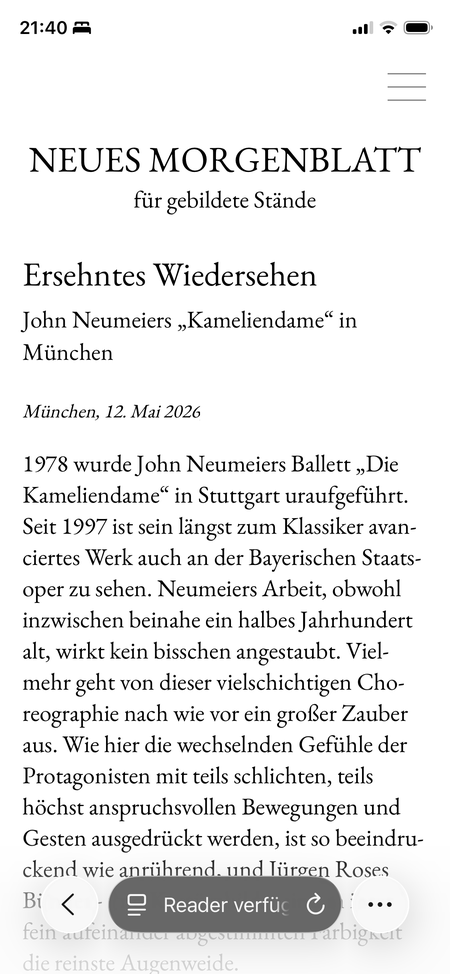
After payment the paywall drops in your browser and you keep reading the article right there (on iPhone, switch back to Safari if needed). You also receive it as a PDF plus, depending on availability, further deliveries such as video, image or audio. Everything is available in the NemosGo app under “Lieferungen” (Deliveries).
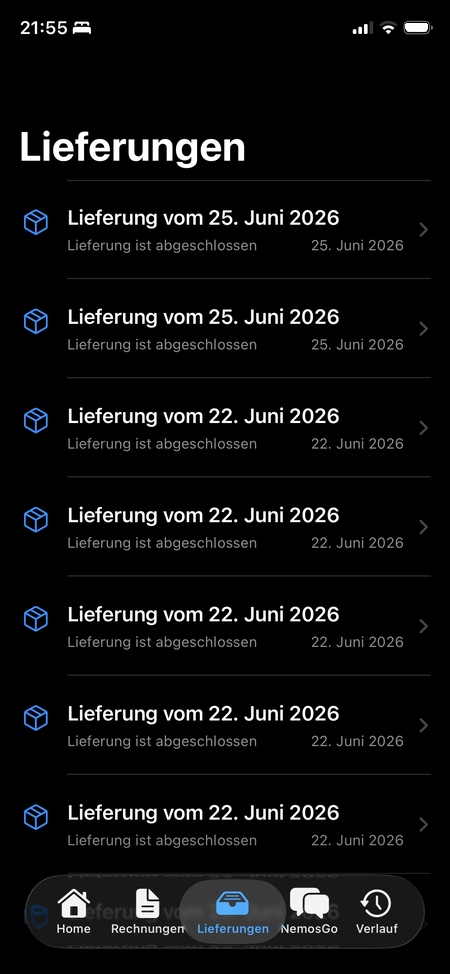
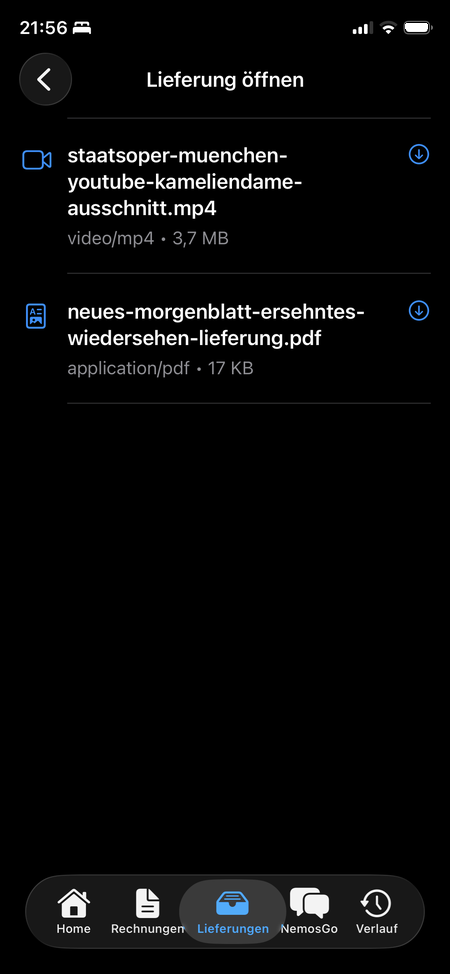
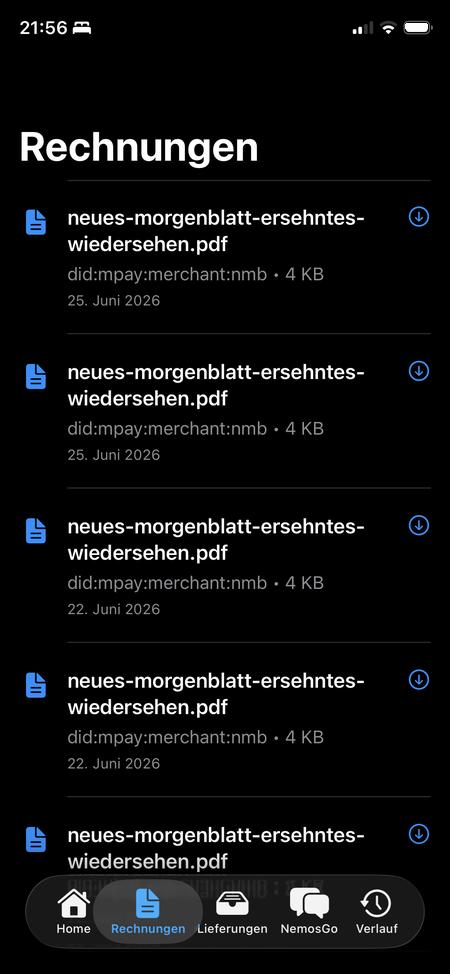
8 · Receipts & overview
Every purchase creates a receipt. The history shows all your purchases at a glance.
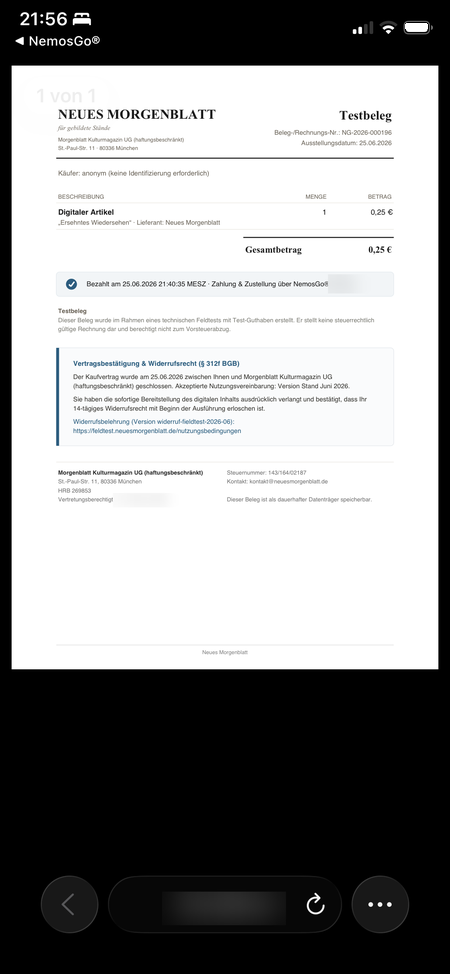
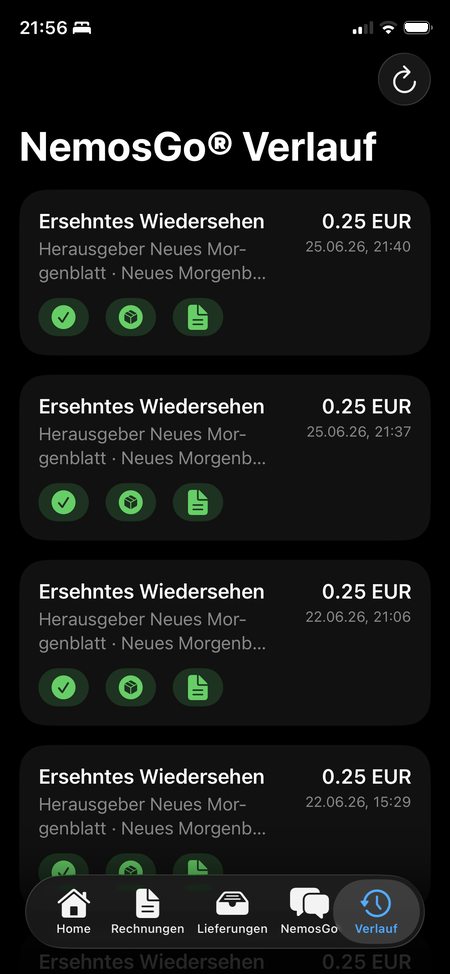
Cancelling a purchase. In the history, open a purchase and tap “Stornieren” (cancel). The provider decides according to its own rules. If it agrees, your credit is refunded, the delivered files disappear from the app, and a cancellation confirmation appears in the history.
Donating with Aktion Baum · ended
The donation campaign ran from 11 to 23 July. The flow was the same as buying an article: choose an amount (50 cents, €2.50 or €5), pay with NemosGo; the tree certificate arrived in the app as a delivery, with a personal dedication if wished.
After the purchase
Give feedback
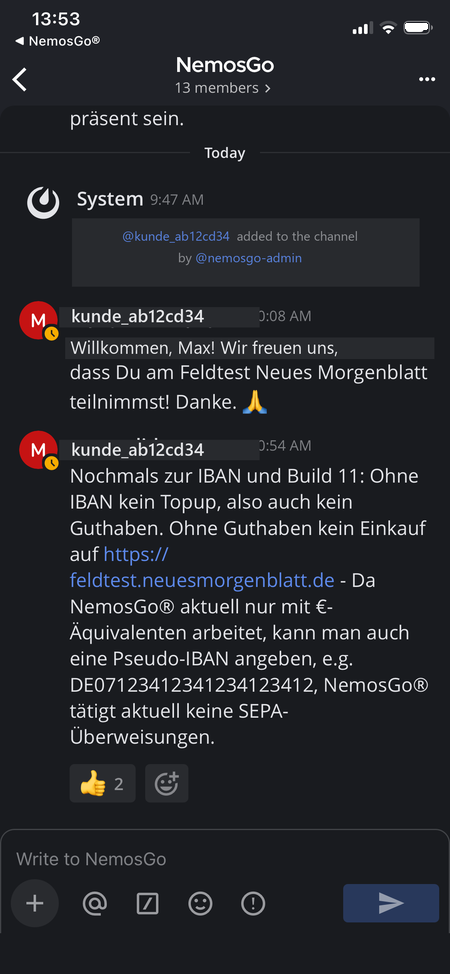
Report impressions, questions or a problem directly via Mattermost in the “NemosGo” channel.
About what? For example:
- How the flow felt: “The purchase went through in under two seconds, very pleasant.”
- A question: “Where do I find my receipt after a purchase?”
- A problem: “My phone doesn’t recognise the QR code.”
- An error message: “I’m getting the following error, here’s the screenshot.”
In about 1 minute
Explainer video
- Install the app
- Sign in with Apple Account
- Install and connect Mattermost
- Top up credit
- Select an article
- Pay
- Read
- Delivery (article and more)
- Receipt
Frequently asked questions
FAQ
About NemosGo
What is NemosGo?
How does it work?
How are NemosGo and the provider connected?
Is my money safe?
How does NemosGo differ from a payment service?
Cost & money
Does NemosGo cost me anything?
What is the credit?
Do I have to provide a payment method?
What happens to leftover credit?
Device & tech
Which device do I need?
Is there an Android version?
Can I use NemosGo on several devices?
What is TestFlight?
What is Mattermost?
Where do I get my Mattermost credentials?
Process
How does taking part work?
How do I receive the purchased content?
Do I get a receipt?
Can I cancel a purchase?
Account & data
Do I need an account with the provider?
Does the GDPR apply?
What does “privacy by design” mean?
“Privacy by design” is not the same as “anonymous”: it does not mean that no data is created at all, but that as little as possible is created, and that it is protected as well as possible. (Towards NemosGo itself you are not anonymous: that is where you are registered, and we use your contact details for support.)